Solid Explorer File Manager
- 4.4
- Rating
- 10.00M
- Installs
- Free
- Price

 Analysis by App-foxy
I usually notice the value of a file manager when something goes wrong: a download lands in an unexpected folder, a document is sitting on a network drive, or a phone refuses to open a file that I know is there. Solid Explorer is built for those moments, but it is also useful when I want a more deliberate way to organize storage than the basic file app included with a phone. Developed by NeatBytes, this free productivity app combines a two-panel layout with access to local, cloud, and network storage.
My first impression is that it feels more like a compact desktop file manager than a simple “open and delete” utility. That is its main appeal and also the reason some people may need a little time to settle in. The interface gives me more control over copying, moving, comparing locations, and handling folders, but the extra control means I have to understand where each storage location is connected and which panel is active.
Getting comfortable before the first serious file transfer
The app has built a strong reputation in its category, with a 4.4 average from roughly 158 thousand ratings and more than 10 million installs. Those figures make sense to me because it solves a practical problem particularly well: it puts several kinds of storage into one working space instead of forcing me to jump between separate apps. It is rated for Everyone, and the current version is 3.5.19, while Android 6.0 or later is required.
You May Also Like

 Blood Strike: 2.5 Anniversary
Blood Strike’s Loadouts Turn Every Drop Into a Tactical Gamble
A close look at Blood Strike’s custom loadouts: how fast access to signature weapons reshapes its battle royale rhythm, rewards preparation, and narrows the gap between fights.

 Pandora - Music & Podcasts
Pandora’s Music Is Easy to Start, but Harder to Recover
Pandora’s strength is its low-effort path from a seed to a station. Its weak spot is how much confidence it asks you to place in connection, setup, and quiet recovery.

 8 Ball Pool
 Is Built on Rivalries, Rematches, and Routine
A close look at the rivalries, rematches, shared routines, and unanswered safety questions that turn a quick pool match into a persistent mobile community.

 Samsung Music
’s Quiet Strength Is Playing What You Already Own
Its reach comes less from spectacle than from dependable access to a personal library. That simplicity is both the app’s strongest retention engine and its ceiling.

 AccuWeather: Weather Radar
AccuWeather Review: A Quick, Clear Forecast for Everyday Decisions
For everyday plans, the best forecast is the one you can understand quickly. AccuWeather makes rain timing, radar, and local conditions easy to act on, with a few trade-offs.

 Hill Climb Racing
Why Hill Climb Racing Still Turns Crashes Into One More Run
A tiny car, a bumpy hill and one more upgrade: Hill Climb Racing keeps resurfacing because its simple chaos makes every near-miss feel personal.
More From Our News Desk
View All News


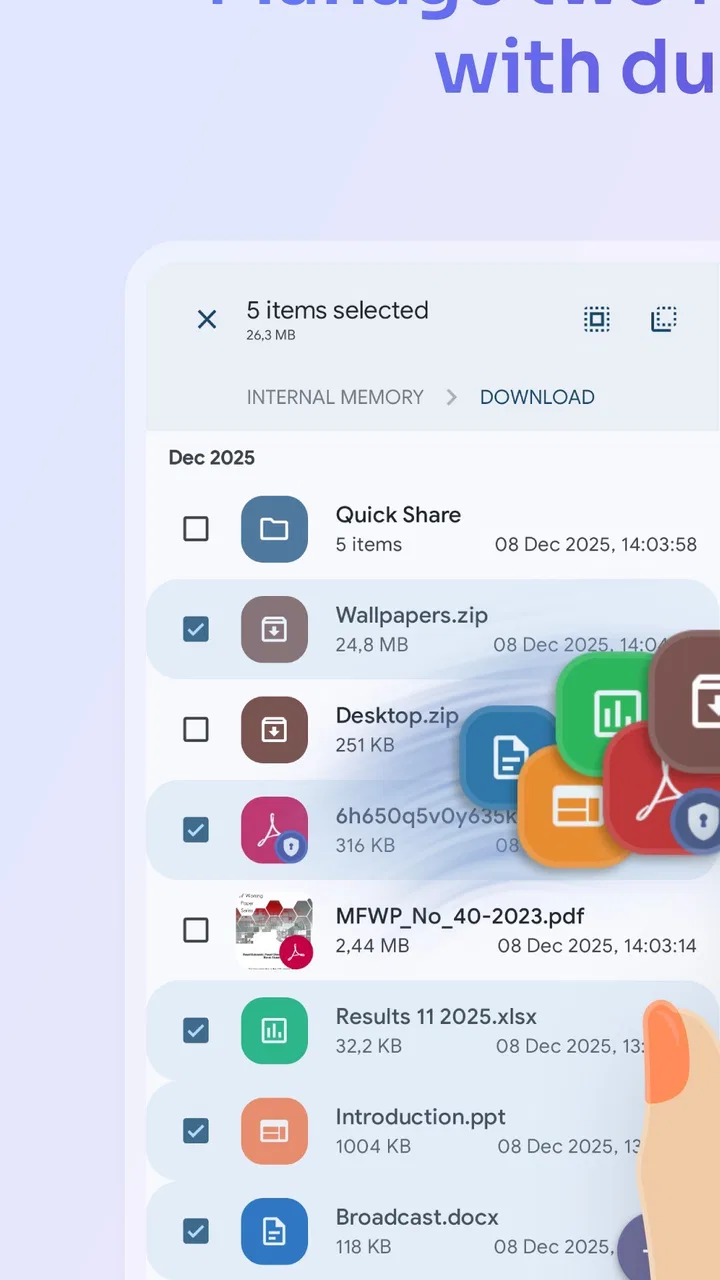
The first place I would slow down is the two-pane screen. A new user can easily assume that tapping a folder simply opens it in the same way as a basic file browser. In practice, the two sides are there to support movement between locations. I treat one pane as the source and the other as the destination, then check both paths before confirming a transfer. That small habit prevents the most annoying kind of mistake: copying a file successfully but not knowing where it ended up.
Before connecting cloud or network storage, I recommend starting with a local folder. Open internal storage, locate a harmless test file, and practice copying it to another folder. This gives you a feel for selection, the action bar, and the difference between browsing and performing an operation. It also makes later troubleshooting easier because you will know whether a problem belongs to the connection or to the basic file operation.
Solid Explorer is free to install, with optional in-app purchases ranging from $0.99 to $22.99 per item. I would use the free version first and decide whether the workflow suits me before paying for anything. The important question is not whether the app has many controls; it is whether those controls make my own storage routine faster and safer.
Why cloud and network setup can feel harder than local storage
Local files are usually straightforward because the phone already knows where its internal storage and removable storage are. Cloud and network locations are different. They depend on a successful sign-in or connection setup, a reachable service, and the correct destination path. If a remote folder does not appear, I first check the account details and the network connection rather than repeatedly tapping the folder.
I also avoid beginning with a large transfer. A small text file or photo is a better test because it quickly answers several questions: can the app reach the location, can it create or copy a file there, and does the destination show the result afterward? Once that works, I move on to larger batches. This is more reliable than discovering halfway through a long transfer that the connection was never ready.
Another useful check is the direction of the operation. When I copy from a remote location to the phone, I expect the local pane to be the destination. When I send something outward, I reverse that arrangement. It sounds obvious, but a dual-pane manager makes it easy to focus on the selected file while overlooking the destination pane.
A practical routine for downloads, photos, and documents
One everyday example is cleaning up a phone after downloading several documents. Instead of opening each file from a notification and guessing where it lives, I use the local pane to find the download folder, select the relevant files, and place them into a named project folder. I then open the destination and verify that the files are there before removing duplicates from the original location.
For photos, I prefer moving in smaller groups when the destination is remote. A local folder can handle a larger batch more comfortably, while a network or cloud transfer deserves a quick verification after each meaningful group. The two-pane layout helps here because I can keep the source visible while checking the destination, rather than relying on memory.
For work documents, I use a simple staging method: incoming files stay in one folder, active material goes into another, and completed files are moved only after I have checked the filename and location. This is not a special automation feature; it is a workflow made easier by the app’s clear side-by-side navigation. The benefit is fewer accidental edits to the wrong copy.
Recovering when a transfer appears to fail
When a copy or move seems unsuccessful, I do not immediately repeat it. First I inspect the destination pane and refresh my understanding of the current folder. A file may have arrived under a slightly different location than expected, especially when I was navigating through several nested folders. Searching by filename, when appropriate, is quicker than starting the same operation again.
If the destination is remote, I test the connection with a small file. If that succeeds, the original problem may have involved the file size, the connection dropping, or the destination’s own restrictions. If even a small test fails, I return to the connection setup instead of changing filenames or moving unrelated files.
For a move operation, I am more cautious than with a copy. Copying gives me a second version to verify. Moving changes the original arrangement, so I prefer to copy first, confirm the destination, and delete the source only when I am certain the result is correct. This takes an extra step, but it is the safest approach for irreplaceable photos and documents.
File names can also create confusion. A duplicate may receive a changed name, or an existing file may make the app ask how to handle the conflict. I read that prompt rather than choosing quickly. Keeping both versions is safer when I am unsure which one is newer; replacing a file should be a deliberate choice, not a reflex.
When the file manager is not actually the problem
It is tempting to blame the app when a file will not open, but file browsing and file compatibility are separate issues. Solid Explorer can help me locate a file, rename it, or move it, yet the phone still needs a suitable application to read its format. If the file is visible but tapping it does nothing useful, I check whether another installed app can open that type before assuming the file manager is broken.
The same applies to missing files. A file may be stored in a different account, a different network share, an archive, or a folder that is not the one I expected. I check the path carefully and confirm that I am browsing the intended storage location. If a remote location disappears, I investigate connectivity and the remote service before changing local folders.
Storage space is another outside factor. A transfer can fail because the phone or destination is full, even though browsing still works. I check available room on both sides before retrying a large operation. This is particularly important when copying media, because a folder can look manageable while its contents occupy far more space than expected.
Permissions and account access can also affect the result. If I can see a location but cannot write to it, I treat that as an access issue rather than repeatedly attempting the same action. I verify that I am using the correct account and that the destination allows the kind of change I am trying to make. This approach avoids turning a simple access problem into a confusing series of duplicate files.
Where it is stronger than a basic file browser
The usual phone file app is often adequate for opening downloads, checking storage, and deleting a few items. I would choose Solid Explorer when I regularly move files between unrelated places. The dual-pane design reduces the number of back-and-forth steps, and it gives me a clearer mental picture of source and destination.
It is also a better fit for people who use more than one storage type. A local-only browser can become inconvenient when documents live partly on the phone and partly in cloud or network locations. Keeping those locations available within one file-management workflow is the app’s most practical advantage.
Compared with a desktop file manager, it remains constrained by the phone environment and the access granted to each storage location. I would not expect it to replace a full computer for heavy file administration. Its strength is portability: I can perform structured file work directly on Android without needing to send every task to a computer.
There is a trade-off in that flexibility. Someone who only wants to open a downloaded PDF or remove screenshots may find the interface more involved than necessary. The app rewards users who organize folders, transfer files often, or work across several locations. It is less compelling for someone who wants the fewest possible buttons.
Small habits that make the app safer and faster
I keep one pane focused on the source and deliberately navigate the other to the destination before selecting a large batch. I also verify the destination after a transfer instead of trusting the completion message alone. These habits are simple, but they take advantage of the layout rather than treating it like a conventional single-pane browser.
For important material, I copy before deleting. For remote storage, I test with a small file before starting a batch. For confusing failures, I check the path, connection, available space, and account access in that order. Those four checks cover most of the practical friction I encounter without resorting to risky changes.
I also give folders clear names and avoid leaving several similarly named versions in different locations. A powerful file manager cannot compensate for an unclear filing system. Solid Explorer makes the organization possible, but I still have to decide whether a document belongs in downloads, an active project folder, or an archive.
Who should use it and who should skip it
I recommend it to Android users who routinely handle documents, photos, archives, or transfers between phone storage and remote locations. It is especially suitable if the standard file browser feels limiting or if you often lose time navigating between separate storage apps. The two-pane workflow is genuinely useful once it becomes familiar.
I would skip it if my file needs are extremely basic and I rarely move anything beyond opening or deleting downloads. In that case, the phone’s built-in browser may be quicker because it demands less setup and presents fewer choices. I would also be cautious about adopting it as the only tool for high-stakes backups without a separate backup plan; a file manager helps organize and transfer data, but it is not a substitute for maintaining independent copies.
My overall view is positive because the app addresses a real weakness in mobile file handling: storage is often split across places, while simple file browsers assume I will work in one location at a time. NeatBytes has made that broader workflow approachable, although the first session can feel busier than expected.
Solid Explorer is at its best when I need control, visibility, and a reliable way to compare two storage locations. I would install it, begin with a small local test, then add cloud or network locations one at a time. If I follow that setup order and verify transfers before deleting originals, the app becomes a practical everyday tool rather than another complicated utility. Its free entry point makes that trial easy, while the optional purchases leave room for users who decide the more advanced workflow is worth keeping.
FAQs for Solid Explorer File Manager
01What is Solid Explorer File Manager used for?
Solid Explorer File Manager is an Android file-management app designed to help you browse, organize, move, copy, rename, delete, and share files stored on your device. It also supports common archive formats, cloud storage connections, and network locations, making it useful for users who want more control than the default file manager usually provides.
02Is Solid Explorer File Manager free to download and use?
Solid Explorer can generally be downloaded and tried without paying, but some advanced features may require an in-app purchase or a premium upgrade after the trial period. The exact availability of features can depend on the app version and Android device. Before downloading, check the current Google Play listing for pricing, trial conditions, and included premium tools.
03Can Solid Explorer access cloud storage and network files?
Yes, Solid Explorer is designed to connect with several cloud-storage services and remote locations, depending on the current version and supported integrations. You can manage files in connected accounts alongside local storage, while network features may allow access to shared folders or servers. Setup can require account authorization, network access, and correct server credentials.
04Does Solid Explorer support ZIP and other compressed files?
Solid Explorer includes tools for working with compressed files, allowing you to open archives and, in supported formats, extract or create them without installing a separate utility. This can be convenient when downloading documents or transferring folders. Compatibility may vary by archive type, file size, and Android version, so unusual formats may still require another application.
05Is Solid Explorer safe for managing personal files?
Solid Explorer is a well-known file manager, but users should still review permissions and privacy details before granting access. File-management permissions are necessary for browsing and modifying storage, while cloud or network connections require additional authorization. Use strong passwords for remote accounts, avoid unfamiliar files, and download the app only from a trusted official store.
Pros
- Dual-pane browsing makes copying and moving files quick.
- Supports cloud storage services and network locations.
- Built-in archive tools handle ZIP
- 7Z
- TAR
- and similar formats.
- Customizable themes and interface layouts improve usability.
- Strong file search helps locate documents across storage locations.
Cons
- Some advanced features require a paid unlock.
- The interface may feel complex for first-time file manager users.
- Cloud and network access can require extra setup and permissions.
- Battery use may increase during large transfers or background operations.
- Certain features may vary between Android versions and device manufacturers.

Solid Explorer File Manager
Gallery